
How to make an Outstanding Tiny Desk AI video
A step-by-step guide with real screenshots: pick the Outstanding scene, add one photo, check the 7-credit cost, generate and download a 19-second video.
What you need
- One clear photo of the person who will be the lead singer.
- A free account (email sign-in).
- 7 credits. The Starter pack is $6.99 for 12 credits, which covers one video. New accounts start with 0 credits.
The result is a 19-second, 480p vertical (9:16) MP4 with the original song. There is no watermark.
Step 1: Open the studio
Open the Outstanding template or the studio on the home page. The Outstanding (original song) scene is selected by default, and the settings are already fixed for this scene.
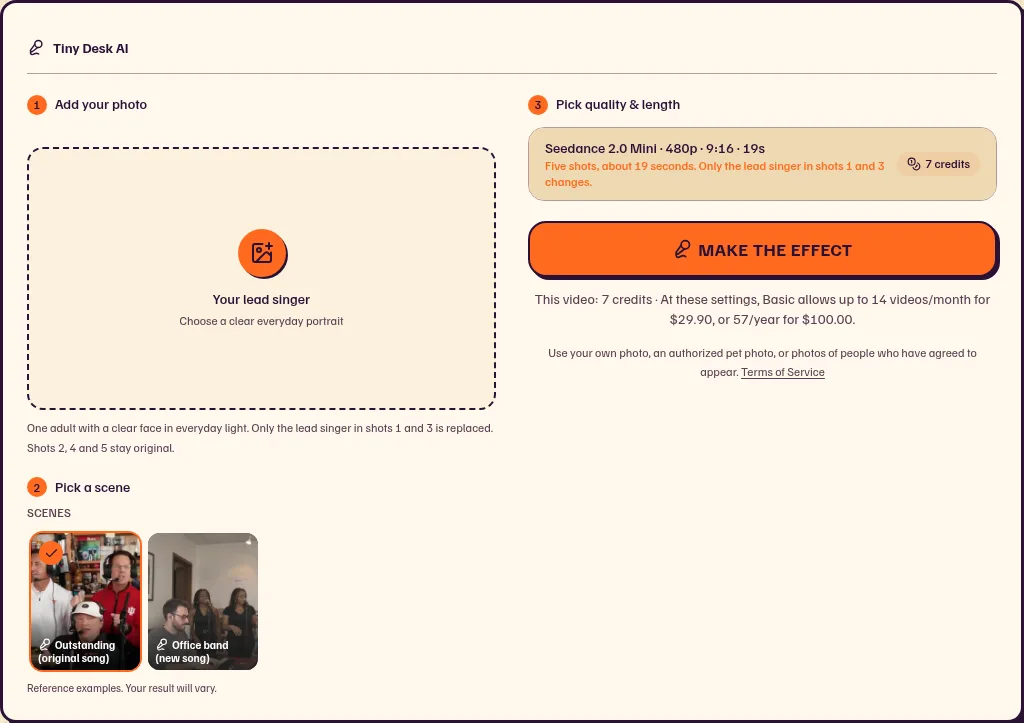
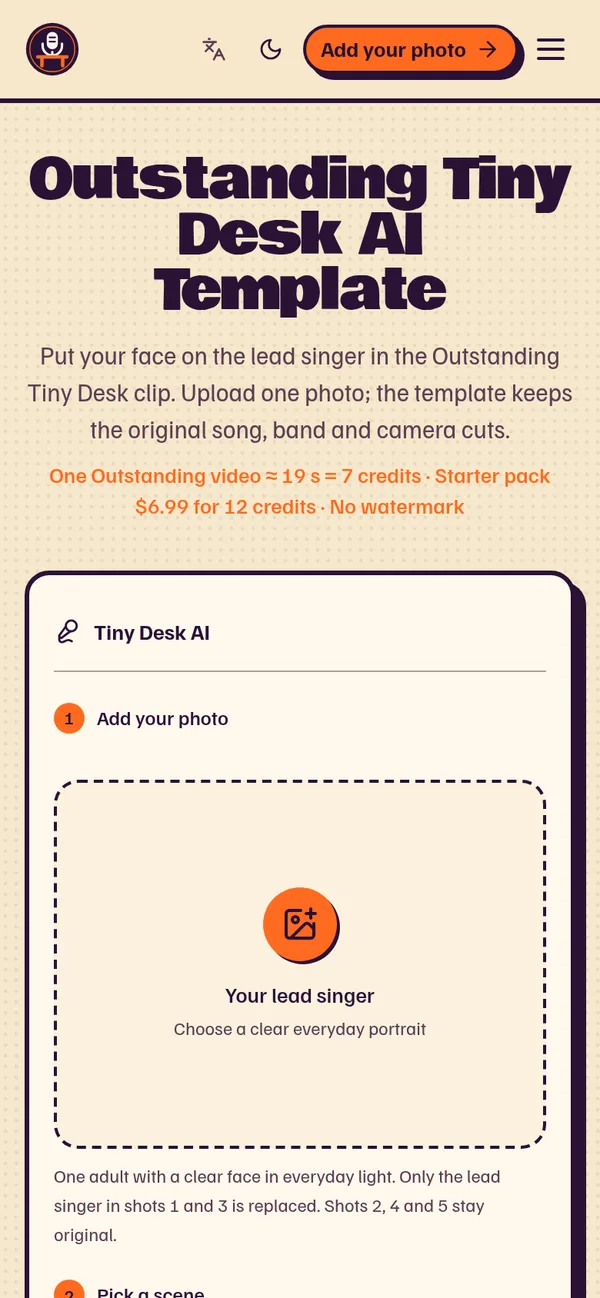
On a phone, the upload box is right under the title, so you can start without scrolling.
Step 2: Add one photo of the lead singer
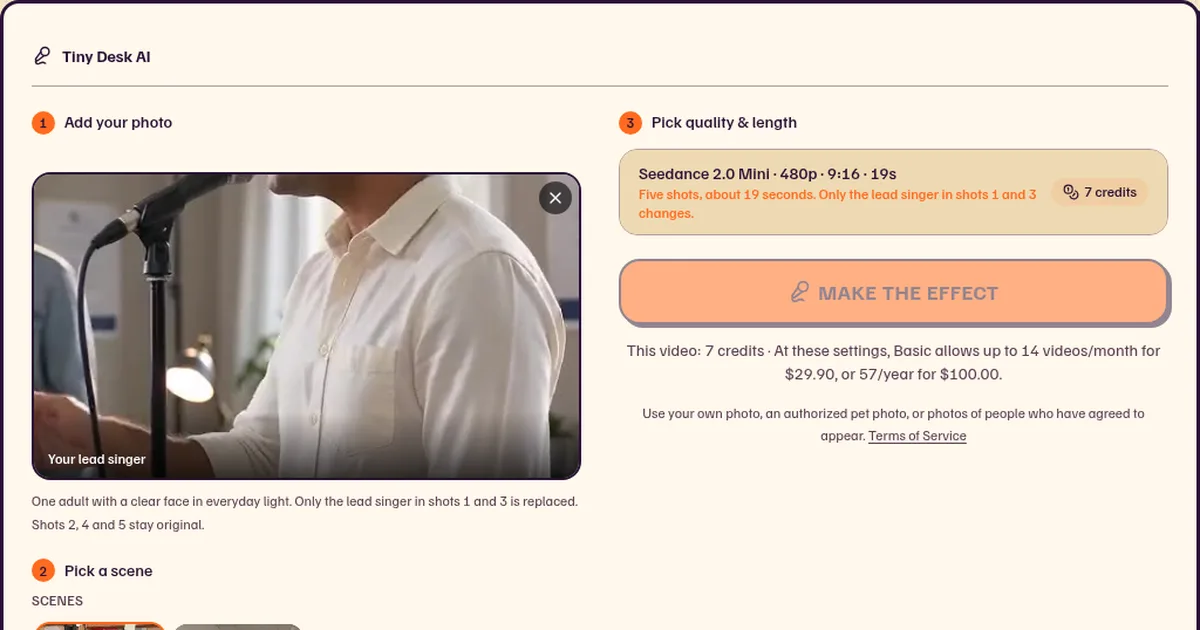
Tap Add your photo and choose a photo of one adult with a clear face in everyday light. Only the lead singer in shots 1 and 3 is replaced; shots 2, 4 and 5 stay original.
Photo tips:
- Face the camera, eyes visible, no sunglasses or heavy filters.
- One person only. Crop a group photo down to the person you want.
- The face should fill a good part of the frame, not a tiny figure in the distance.
Want two people? Switch to the Office band (new song) scene: it takes a lead singer and a saxophonist, from two separate photos or one side-by-side photo (left = lead, right = sax). It uses a new song, not “Outstanding”.
Step 3: Check the settings and the cost
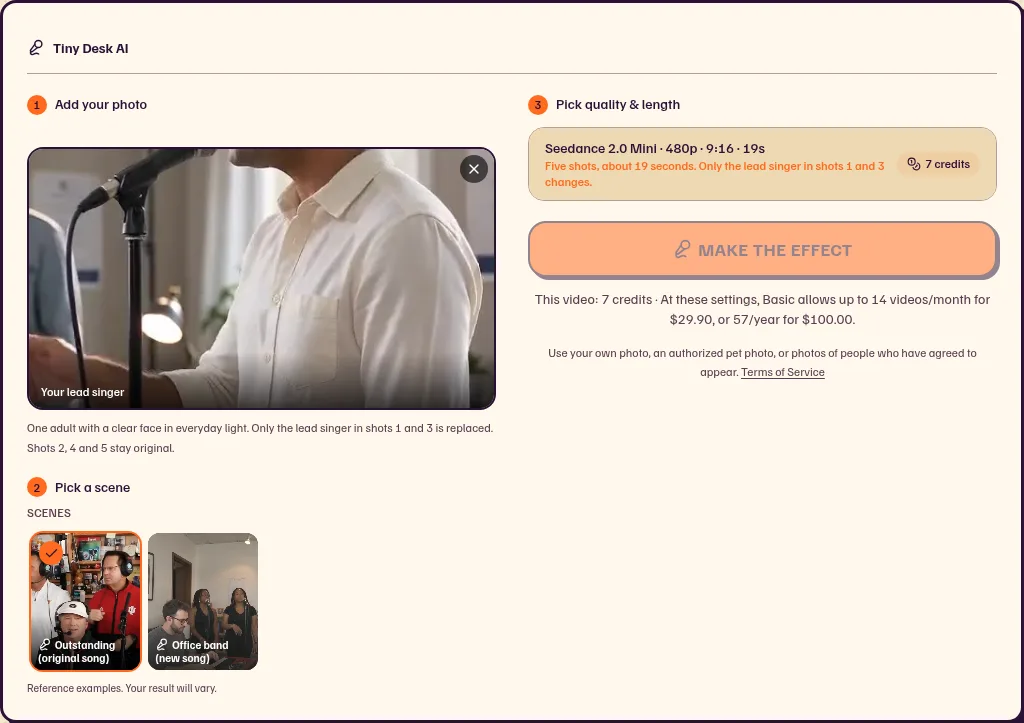
The quality line reads Seedance 2.0 Mini · 480p · 9:16 · 19s · 7 credits, and the cost of this video is shown next to the button before you pay anything.
Step 4: Make the effect
Press Make the effect. If you are not signed in, you will be asked to sign in first; signing up is free. If you have fewer than 7 credits, pick a pack on the pricing page. The Starter pack ($6.99, 12 credits) is enough for one video.
Step 5: Wait about 4 minutes
Generation usually takes about 4 minutes. You can leave the page; the finished video appears in your account. If a task is confirmed as failed, its reserved credits are returned.
Step 6: Watch and download
Watch the whole clip, then download the MP4. It has sound and no watermark. When you share it, label it as AI and only use faces of people who agreed.