
Check sound and voice continuity
Separate generated sound, the original recording, apparent voice changes and musical timing in your complete video.
The short answer
Listen to the entire output before deciding that its sound works. A photograph cannot supply a singer’s voice. Generated audio and the original “Outstanding” recording are different sources, and a familiar visual scene does not establish a right to use either recording.
In this guide
What to check
| Step | Check |
|---|---|
| Identify what the audio is meant to be | Do not infer an original recording from a familiar scene. |
| Listen once without interruption | A good first phrase does not establish the ending. |
| Compare vocal identity rather than every pitch change | Expression and a different apparent singer are different questions. |
| Check timing against visible actions | A keyboard gesture or mouth movement needs its own review. |
| Record the audible interval | Describe what changed and keep the source clear. |
Identify what the audio is meant to be
Check the selected model and any audio description shown before submitting. If the tool supplies generated sound, treat it as a new track rather than the original Charlie Wilson performance. An audio track being present does not establish a matching tune, voice or tempo.
If a mode has no audio source or sound control, do not infer that a photo contains one. The input image can describe visible appearance but cannot convey a recording of the subject’s voice.
Listen once without interruption
Use one device at a consistent volume. Listen from the first audible moment through the end before replaying details. Check for silence, sudden truncation, an abrupt new voice and changes in recording space.
Watch the ending while listening. A visually complete instrumental view may still end mid-phrase, and a smooth music bed may hide a disconnected final gesture.
Compare vocal identity rather than every pitch change
Natural emphasis can include pitch and volume changes. Flag a sustained change of apparent speaker, accent, rasp or recording character. Note where it begins and whether the original apparent voice returns.
For a pet interpretation, do not assume a human vocal performance proves species-consistent visual motion. Review the audio source and the animal’s gestures as related but separate questions.
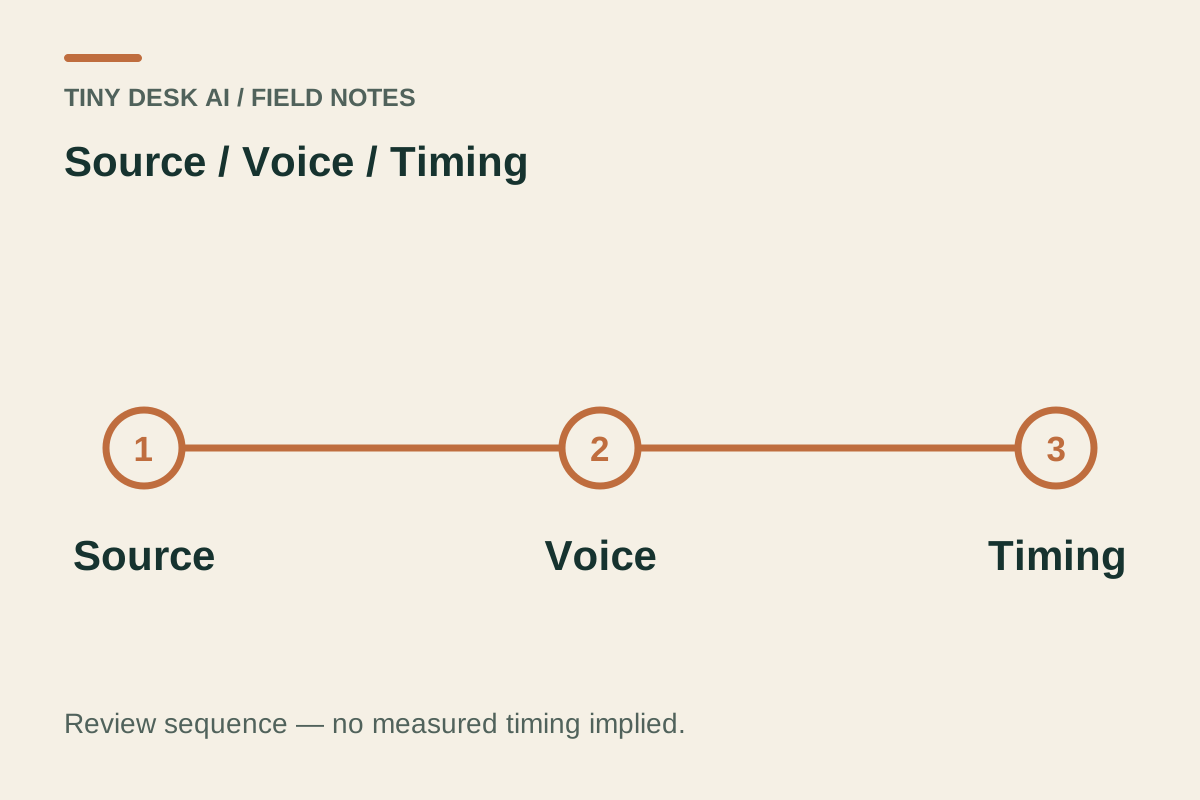
Check timing against visible actions
Look for obvious mismatches between gestures and audible accents, and for a mouth continuing to move during silence. A scene that feels musical does not prove precise lip sync or instrument synchronisation.
Exact reference timing needs a comparison with the actual source. A shorter generation or different soundtrack cannot be judged as the same performance solely because both have a band and keyboard.
Record the audible interval
A useful report gives the work, selected settings and an interval such as 00:07–00:10, followed by what you heard. “A second voice takes over after the cut” is more actionable than “the audio is bad”. Contact support
Do not replace an unresolved generation with repeated requests. If you add music in another editor, keep that edited version distinct and confirm you have permission to use the track.
Questions about this task
No. A photograph is not a voice recording. Do not infer voice cloning from an appearance reference.